Granting rights
What a role may do is set on its Rights tab: collections, buckets, capabilities and tools.
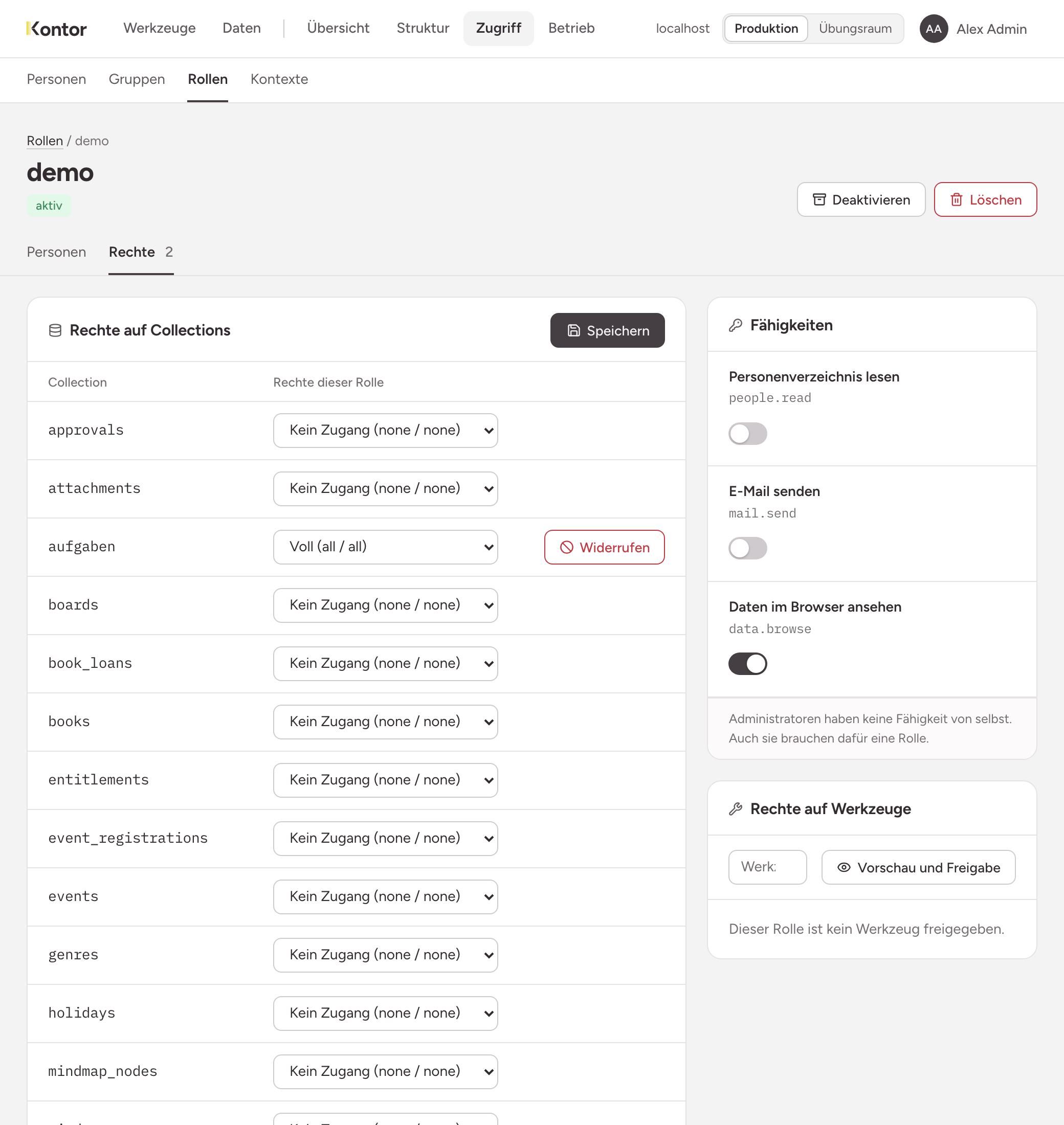
Rights belong to a role, never to a person. Under Access, Roles, open the role and choose the tab Rights. It has four parts: Rights on collections, Rights on buckets, Capabilities and Rights on tools.
A right never comes into being by itself. This applies to you as well: the role admin covers the structure and the granting of rights, but no data and no capability. If you want to see data yourself, you need a role with the right.
Rights on collections
The table lists every collection of the instance. In each line you choose an access kind. Each access kind is a pair of a read and a write scope, named in brackets:
| Access kind | Read / write | The members |
|---|---|---|
| No access | none / none | do not see the collection |
| Read | all / none | read every row, change nothing |
| Read, edit own | all / own | read every row, create rows and change their own |
| Own only | own / own | read and change only the rows they created |
| Full | all / all | read and change every row |
| Submit only | none / all | create entries but neither read nor change any |
The scopes:
| Scope | Meaning |
|---|---|
none | no row |
own | the rows the person created themselves |
context | their own rows plus the rows whose context value belongs to one of the person’s groups |
all | every row |
To grant rights:
- Choose the access kind in the lines.
- Choose Save above the table. The button saves all lines at once.
A saved right takes effect on the members’ next request.
Changing requires reading
The write scope allows creating. Someone can only change rows they may also read: the narrower of the two scopes applies. With all / own a member changes their own rows, with none / all none at all. Submit only therefore suits a form that everyone sends and nobody looks into.
Custom
If you need a combination that has no name, choose Custom and set the scopes for Read and Write separately next to it.
The scope context
If a collection has a field of type context, Team (context / context) and Read, edit team (all / context) are offered in addition. For collections without such a field the table does not offer the scope. How to set it up is described under Contexts.
Several roles add up
If a person has several roles, the widest scope wins per collection, separately for reading and writing. A role never takes away what another one gives. What applies to a person in the end is shown on their page under People.
Withdrawing a right
Choose Revoke in the line and confirm. The members lose access to this collection on their next request. The data stays.
Rights on buckets
A bucket is a store for files. The table works like the one for collections, with its own Save. Here own stands for the files the person uploaded.
Capabilities
A capability is a right that is not tied to a collection or a tool. Each one is a switch:
| Capability | Identifier | Allows |
|---|---|---|
| Read the people directory | people.read | reading names and addresses of the people of this instance |
| Send email | mail.send | sending emails through the instance |
| Browse data in the browser | data.browse | using the data view |
Switching on takes effect immediately. When you switch off, the instance asks for confirmation. The members then lose the capability, unless another of their roles still allows it.
Rights on tools
A tool appears for the members under Tools as soon as it is released to the role.
- Enter the name of the tool in the field Release a tool….
- Choose Preview and release. The preview compares what the tool says it uses with what the role reaches of it.
- Release the tool to the role.
The preview warns when the role lacks a right the tool needs. It does not block and grants nothing. Revoke takes the release back. More about this is under Releasing tools.