Releasing tools
Publish the draft, release a tool to a role, name an owner and look at errors.
You find the state of the tools under Operations, Tool delivery. The page is called Tools.
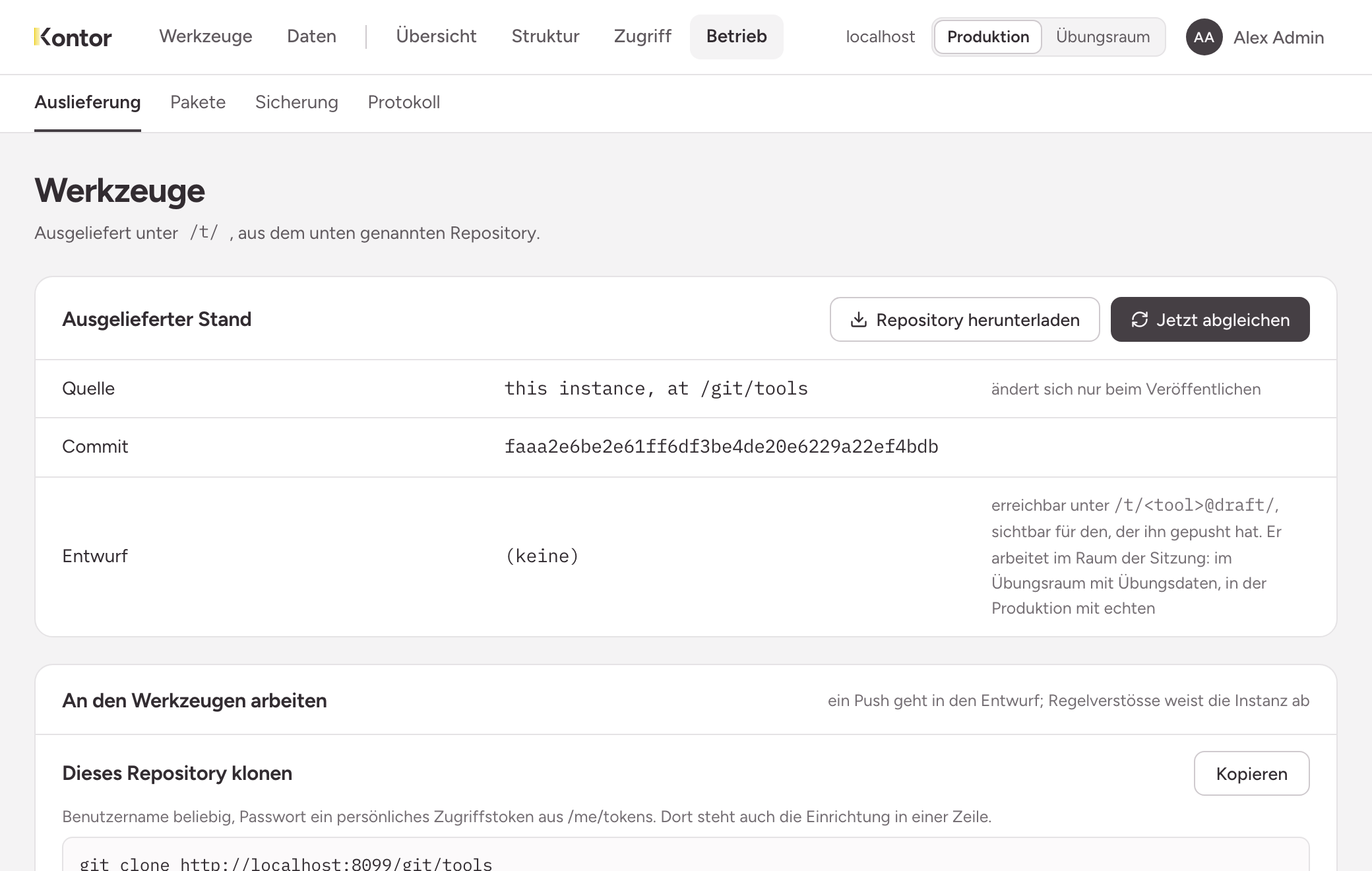
Reading the state
Delivered state names three things:
- Source: the repository from which the instance delivers the tools.
- Commit: the published state. It changes only when you publish.
- Draft: the state someone is currently building on. A draft is reachable at
/t/<tool>@draft/and visible to the person who pushed it.
Sync now brings the delivery up to the state of the repository. If the repository lives in the instance, there is also Download repository and, under Work on the tools, the command for cloning.
The table Tools lists every tool with its title and the Roles with a grant. no grant means: nobody sees the tool. something is missing means: a role lacks a right the tool needs.
Publishing the draft
When a draft is waiting, the button Publish the draft appears below the state. Afterwards the draft runs as the published state, for everyone the tool is released to.
Two things can hold you up:
- Schema changes are still waiting for production. Apply them first, see Carrying over from the practice room. A tool that needs them breaks otherwise.
- Not publishable yet: a changed tool does not say what it uses. Whoever builds it adds
usestotool.jsonand pushes again, see Structure of a tool.
Releasing a tool to a role
Without a grant nobody sees a tool, not even you. Open the tool in the table.
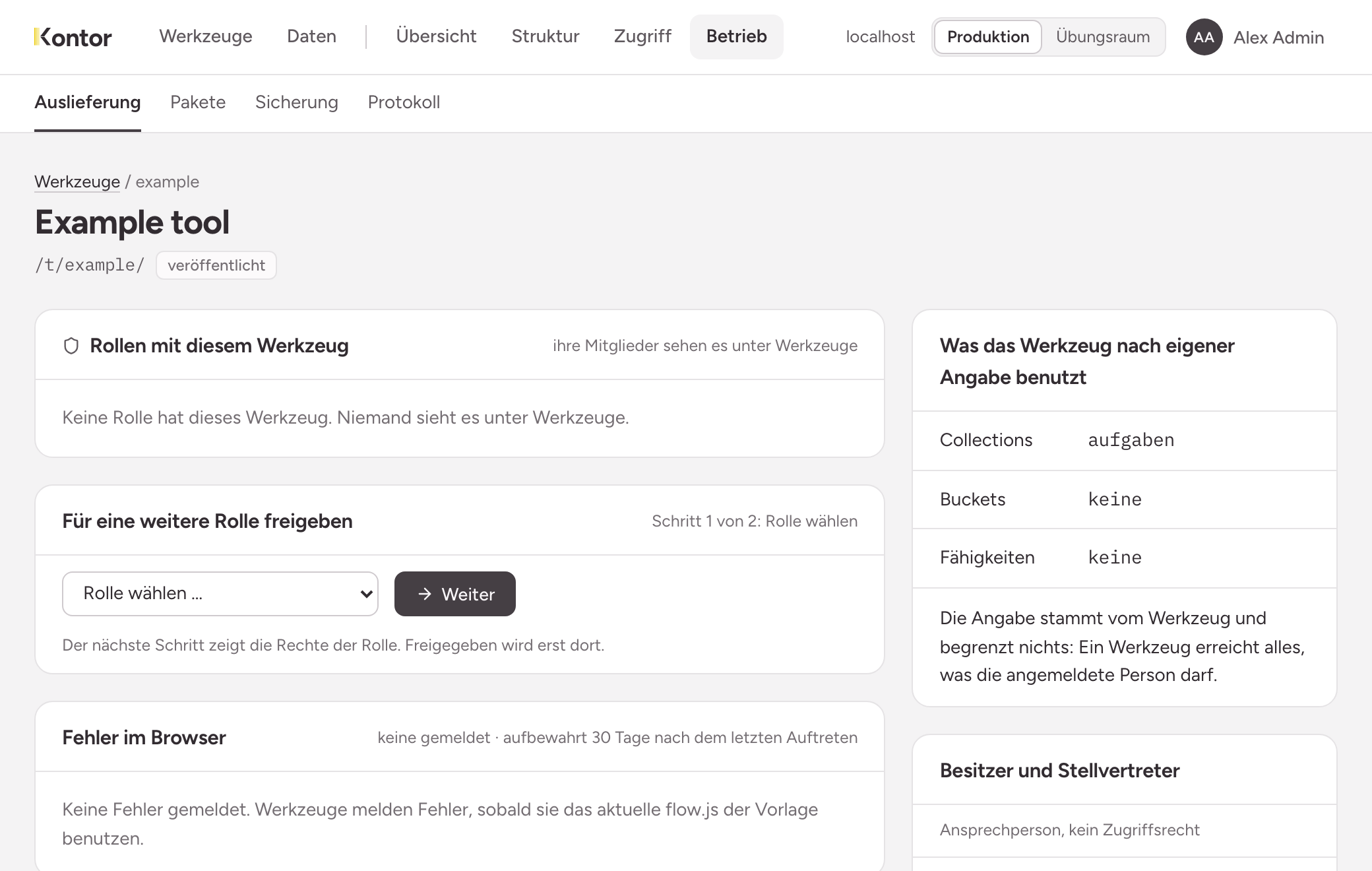
- Under Release to another role, choose the role and then Continue. Nothing is released yet.
- Read the preview. For every collection, bucket and capability the tool says it uses, it shows what the members of this role can reach: the scope for Read and Write, or granted and not granted.
- Choose Release to … with the name of the role.
The preview warns and does not block. If the role lacks a right, you can release anyway. The tool then fails at that point. Grant it on the role leads to the page of the role, where you grant the missing right, see Granting permissions. The preview itself grants nothing.
You withdraw a release on the page of the role.
Naming an owner and a deputy
The owner is the contact person for a tool. It is not an access right.
On the page of the tool, open Name an owner, choose the Owner and, if you like, a Deputy, and choose Save. You choose from the administrators. Later the same way is called Change.
If a released tool has no owner, the Overview reports it under Things worth noticing. Nothing is blocked by that.
Confirming that the tool is still needed
The owner or the deputy confirms a tool under My access, in the section Tools you are responsible for, with Confirm. The page of the tool shows under Confirmed as needed when and by whom. When a confirmation is due, that also appears under Things worth noticing.
Looking at the errors of a tool
Under Errors in the browser, the page of the tool shows what the tool has reported: the error, where it happened, how often and when last. The entry names no person.
Once you have fixed the cause, choose Resolved. If the error happens again, it is open again. The instance keeps an error for a limited time after it last happened. The period is stated in the heading of the section.