Viewing and exporting data
The data view shows a collection as a table: filter, sort, page and export as CSV.
The data view under Data shows the rows of a collection directly, without a tool. It is read only. You cannot create, change or delete anything there; that is what tools are for.
Who sees the data view
You need two things, both through a role:
- the capability
data.browse(Browse data in the browser). Without it the entry Data is missing from the top bar. - a read right on the collection. The overview only shows collections you may read.
The view shows the same rows as a tool. If you have the scope own on a collection, you see only the rows you created here as well.
If the page says Browsing data has not been released to you. or There is no collection you may read., ask your company’s administrators.
Opening a collection
Choose Data and then the tile of the collection. Below the title you find the data space you are reading in: production or the practice room. In the practice room you only see what was created there.
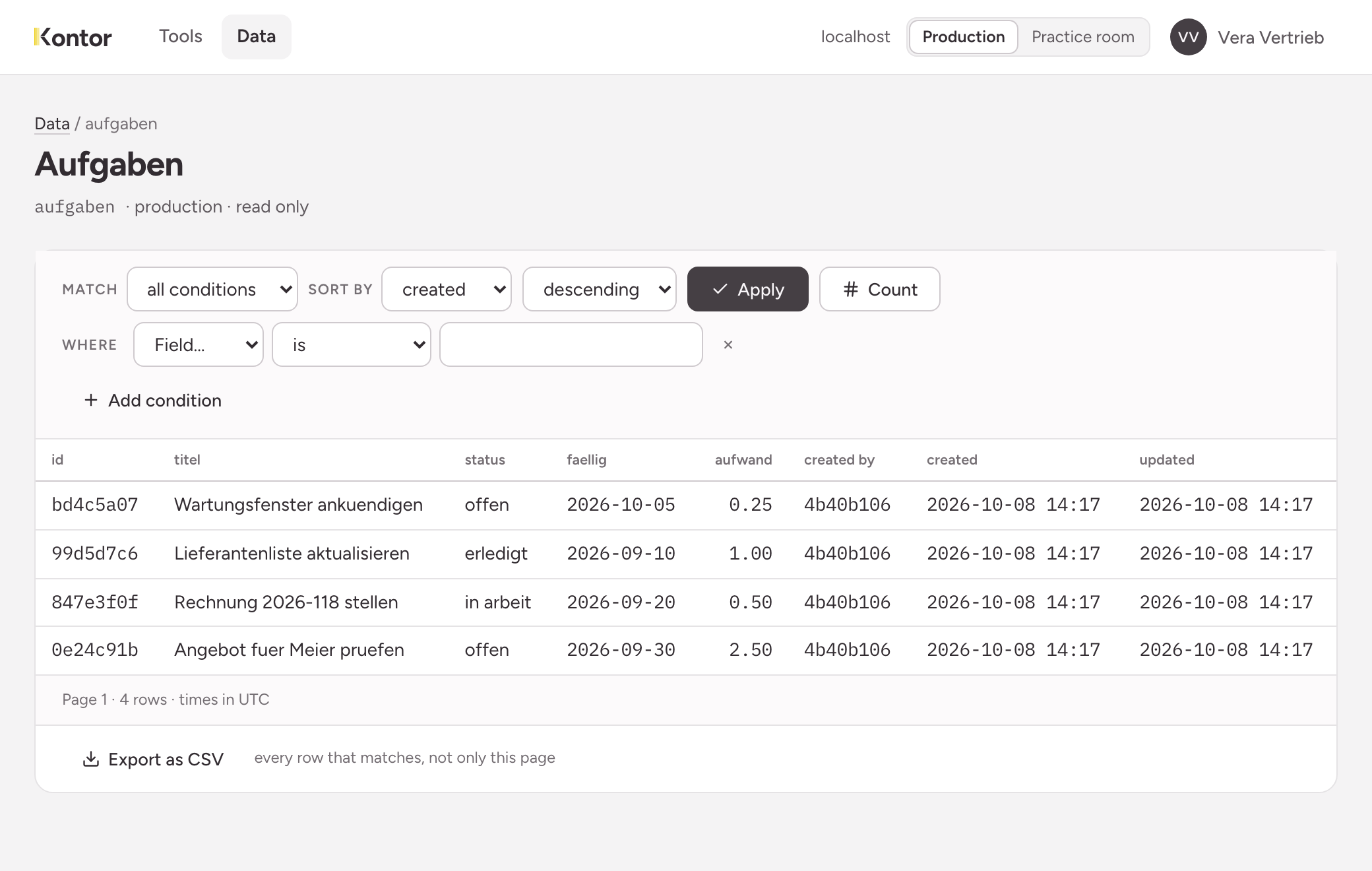
The table shows the identifier of the row first, then the fields of the collection, and at the end created by, created and updated. Times are in UTC. A person appears by name if you have the capability people.read. Otherwise you see a shortened identifier.
Filtering
- Under Where, choose a field, a comparison and a value.
- For another condition choose Add condition. A view holds at most eight conditions.
- Under Match, decide whether all conditions must hold or any condition is enough.
- Choose Apply.
The comparisons are is, is not, contains, starts with, greater than, at least, less than, at most and is empty. The cross at the end of a line removes the condition.
A condition without a value is refused when you apply, and the line is marked. The view never applies a filter that says less than the form.
Sorting
Under Sort by, choose a field and next to it descending or ascending, then Apply. The default is created, descending: the newest row is on top. You can sort by exactly one field.
Paging and counting
A page shows 50 rows. Below the table you see which page you are on, and more follow if there are more. Next page moves on, First page takes you back to the beginning. There is no step back by one page.
The view states no total and no last page. If you want the number, choose Count. The view then states how many rows match the filter.
Exporting as CSV
Export as CSV downloads a file with every row that matches the applied filter, not only the visible page. The filter that counts is the one the table currently shows. A condition you have typed but not yet applied does not count.
Limits
- Filter and sorting are not part of the address. A bookmark leads to the first page without a filter.
- A reference to another collection appears as a shortened identifier, not as the text of the target row.