Profile, language and sessions
What the instance knows about you, how to choose the language and how to sign out everywhere.
Everything of your own is behind your name on the right of the top bar: Profile, My access, Access tokens, the language and Sign out.
Viewing your profile
Choose your name and then Profile.
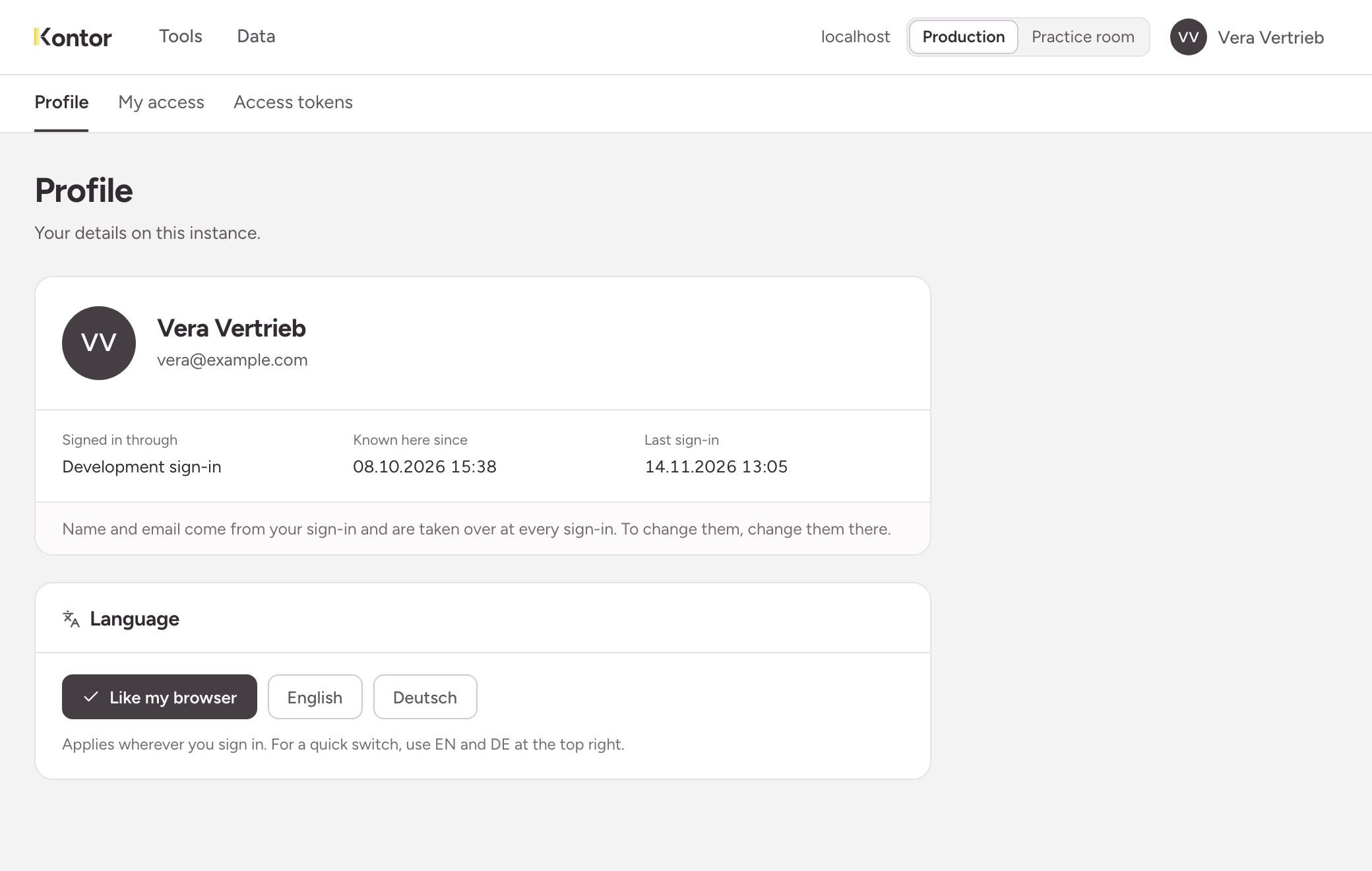
The page shows:
- your name and your email address
- Signed in through: the service you sign in with
- Known here since: your first sign-in to this instance
- Last sign-in
You cannot change name and email in Kontor. They come from your sign-in, and the instance takes them over again at every sign-in. If something is wrong, have it corrected in your company account and sign in again.
Choosing the language
The pages of the instance are available in German and English.
- Quick switch: choose your name and then EN or DE. You stay in the same area.
- In the profile: under Language, choose between Like my browser, English and Deutsch.
With Like my browser the instance follows the language your browser prefers. The choice belongs to you, not to the device: it applies wherever you sign in.
The language affects the pages of the instance. A tool brings its own texts, and the names of collections and fields stay as your company chose them.
Seeing where you are signed in
Your sessions are not in the profile but at the end of the page My access, under Where you are signed in. Every line is a sign-in in one browser:
| Column | Meaning |
|---|---|
| Since | when you signed in there |
| Last used | the last request from this session |
| Ends at the latest | when the session ends by itself |
The session in which you are reading the page is marked this one. The list does not show which device or browser is behind a line.
Signing out everywhere
If you did not sign out on someone else’s computer, end all sessions at once:
- Open My access.
- Under Where you are signed in, choose Sign out everywhere.
This ends every one of your sessions, including the current one. Anyone who still has a page open on another device can no longer load or save anything with the next request. The button only appears when you have more than one session. You cannot end a single other session on its own.
Signing out
Choose your name and then Sign out. The instance ends the session of this browser and shows the page Signed out.
You are still signed in with your company account afterwards. If you open a page of the instance, it signs you back in without asking. To leave that as well, sign out of your Microsoft account. On someone else’s computer this is the step that counts.